
HTML & CSS Introduction
Topics Covered
- What is HTML and why we use it?
- Consider the steps while designing HTML pages.
- What are HTML Tags and how to use?
- How to create pages with HTML Standards?
- How we can use CSS to control look and feel of our pages.
What is HTML?
The full form of HTML is Hyper Text Markup Language. It is originally derived from SGML (Standard Generalized Markup Language). But SGML is larger and more complicated document processing system. But HTML is light weight and easy to use. So, we use HTML instead of SGML.
Structure of HTML page
This HTML page contains headers, paragraphs, list and more selections. The above screenshot shows heading, paragraphs and lists. Most of the HTML web pages contains Headings, paragraphs, lists and tables. We can write bold letters and make formatting like changing colours etc., These all are included in inside of HTML.
Is HTML Describe Page Layout
HTML is don’t specify specifically about headings, page layouts and other formatting. The only thing HTML code result will appear in the browsers like firefox, chrome or edge. Moreover, different browsers can display different views of the same HTML code. It means some browsers may not contain that styles or fonts which we written in HTML code. Finally, we can conclude HTML describe the structure of the document not appearance. This formatting and styles can use in CSS declarations.
Writing markup language
It means to start with a text of our page and add special tags around words and paragraphs. These tags are indicating different parts of pages and create different effects in the browser. HTML uses set of tags and we can not make up own tags, styles or features.
HTML files
HTML documents are like a plain-text files (ASCII). It means HTML not contain any specific platform or program or specific information.
HTML files contain
- Text of the page itself.
- These files can identify page elements, structure, formatting and hypertext links to other pages or included media.
<tagname>Welcome</tagname>The above structure can explain HTMl tags. Every tag contains < >(angle brackets). The beginning HTML tag starts with < > and ending tags can contains</>.
Ex:
<p>Welcome to Varshitha Education. We will provide online classes</p>The above example explains about paragraph. When we use <p>. This indicates a paragraph starting and </p> indicates ending the paragraph. Between <p> and </p> indicates the entire data is indicated as a paragraph. HTML tags are not case sensitive. It means we can use upper case or lower cases. The HTML is not giving any errors for the changing of case.
Create simple HTML Page
For this purpose, we can create a new text document with any name and give extension has html, like
Welcome.html
In the above file name welcome is a file name and .html indicating the behaviour of the file.
Now open that text document and type below text.
<!DOCTYPE html>

<html>

<head>

<title>Varshitha Education</title>

</head>

<body>

<h1>This is a example heading</h1>

</body>

</html>
The above code indicates simple html code. Every html code starts with “<!DOCTYPE html>” and provide <html> and it contains </html> ending tag also.
<head> is indicates heading of the html and <title> indicates name of the document, and <body> section will display the content which we given below. <h1> indicates heading.
Result
After saving the document, open the document in any browsers. Then it can shows the result of the saved document.
Text Formatting
The HTML page ignores which spaces, tabs and returns. If we want to format our page we can spend more time and we can use more tags.
<h1>We will learn HTML Course</h1>

<h1>

We will learn HTML Course</h1>

<h1>

We will learn HTML Course

</h1>
The above all are same, because HTML omits spaces, tabs and returns.
HTML Attributes
We can define attributes while open a tag and few global elements that can be used with any tag.
<h1 id=”TheHeading”> we are learning HTML code</h1>The above example shows the id attribute. It means that it is providing single attribute tag.
<h1 id=”TheHeading” class=” first”>We are learning HTML code</h1>The class attribute is another global attribute and it can be used to establish arbitrary group of elements.
Style Attribute
In the above examples we used <h1> tag. When write anything between <h1></h1> tags, it indicates that it is a heading in the browser. So same like that we can put all our styles in our html code by using style attribute.
<h1 style =”font-family:Verdana, sans-serif;”>Wecome</h1>The above style attribute <h1> tag contains style declaration. All the style declarations can follows same basic pattern, the rule ends with semicolon, and we can indicate more style attributes by placing semicolons between them. If we can use one style attribute, the semicolon is optional, but it is a good idea to include it.
History of HTML
HTML 2.0 was derived from HTML and all tags that all browsers should support. We can create good web pages by using only tags that were included in HTML 2.0.
HTML 3.2 was developed in early 1996. Several software vendors including IBM, Microsoft, Netscape communications corporation, Novell, Soft Quad, Spyglass, and Sun Microsystems, joined with the W3C to develop this specification. Some primary additions to HTML 3.2 included features such as tables, applets, and text flow around images.
HTML 4.0 introduced in 1997, it contains many features that gave designers greater control over page layout than HTML 2.0 and 3.2. Like HTML 2.0 and 3.2 the W3C created the HTML 4.0 standard.
Frames and floating frames were introduced with the HTML 4.0 specification. The most import change in HTML 4.0 was its increased integration with Cascading Style Sheets.
XHTML
The Specification that followed HTML 4.0 was XHTML 1.0, which was followed by XHTML 1.1. The most significant new change introduced with XHTML was that it required that HTML documents to also be valid extensible markup language (XML) documents. The X in XHTML stands for XML.XML is another markup standard derived from SGML.XML is a language used to create other markup languages, and XHTML is one such language.
Technically XHTML and HTML 4 are very similar. The actual tags and attributes are almost the same, but the XML rules required large changes to many websites. XHTML document must be valid XML as well.
- All the tags in our document must be lowercase.
- Any tags that do not have closing tags must be closed using a slash after the tag name. So the <br> tag would be written as <br/>.
- All attributes must have a value.
- XHTML requires that we can use the attribute name as the value in these cases. So, we follow the form
Attribute = ”attribute”.
Current and Evolving Standard: HTML5
While the W3C is still involved in web standards, a new group, the WHATWG (Web Hypertext Application Technology Working Group) is busy creating a new standard for HTML: HTML5. HTML5 does not demand that webpages be valid XML.
Basics of HTML
In this lesson we will discuss about:
- Tags for the page structure: <html>, <head> and <body>
- Titles of tags, headings and paragraphs: <title>, <h1> through <h6> and <p>
- Comments of tags: <!– … — >
HTML Structure
HTML defines 3 tags
- <html>
- <head>
- <body>
Thes 3 tags are make skeleton of the web page, and provides simple information about page before loading the entire thing. These tags are not displayed in the web page. These tags will help to browsers.
<html> tag
The <html> tag indicates that content of the file in the HTML language.
This <html> tag follows from the <!DOCTYPE> identifier.
All the text and HTML elements in web page should be placed within the beginning and ending of the HTML tags.
<!DOCTYPE html>

<html>

---This is our page---

</html>
This <html> tag services as a container for all tags make up the page. It is mandatory because both XML and SGML indicates that every document has a root element. If we are not using <html> tag in the page that page is invalid.
<head> tag
This <head> tag is a container for tags that contain information about the page, rather than information. Generally, only a few tags are used in the <head> area of the page. We should never put any of the text of our page into header.
<!DOCTYPE html>

<html>

<head>

<title>This is the title of the page. </title>

</head>

---Test---

</html>
<body> tag
This tag is content of the HTML page. Between <body> and </body> we can write anything which you want to display to the user. So, without body we can not make proper web pages.
With the combinations of <html> and <body> tags then the page will look like a meaningful
<!DOCTYPE html>

<html>

<title>Varshitha Education</title>

</head>

<body>

Welcome to Varshitha Education. We will provide Quality education in online.

</body>

</html>
If we observer the above code, the <body> and </body> tags are inside the <html> tags, and same with both <head> tags also. In same way all HTML tags will work.
<!DOCTYPE html>

<html>

<head>

<title>

</title>

</head>

<body>

</body> </html>
Whenever you use </html> tag, make sure check all relevant tags are closed or not. Because </html> tag is ending of the HTML code in the page.
Title
Every HTML page needs a title that indicates what the page describes. It will be visible the title bar of the browser when any user can view the web page. Title can store bookmarks and search engines when they index our pages.
Use <title> and </title> tags, for writing of the page title.
<!DOCTYPE html>

<html>

<head>

<title>Varshitha Education</title>

</head>

<body>

Welcome to Varshitha Education

</body>

</html>
Every page can have one specific title and it will be plain text. It means it does not contain any special characters and symbols.
If we want to write a title make sure that we can write short and descriptive title of the page. Because it will visible to the user and he can easy to understand what the page contains.
If you use bigger title in between <title> and </title> the browser can show only some characters. So better to use short and meaningful title.
Headings
These headings are used to add in the <body> tag. It means to show the words in the bolder text and looking bigger compare to the normal text.
<h1>This is a Heading</h1>
<h1></h1>

<h2></h2>

<h3></h3>

<h4></h4>

<h5></h5>

<h6></h6>
Example HTML Code:
<!DOCTYPE html>

<html>

<head>

<title> Varshitha Education</title.

</head>

<body>

<h1>Welcome to Varshitha Education<h1>

<h2>Welcome to Varshitha Education</h2>

<h3>Welcome to Varshitha Education</h3>

<h4>Welcome to Varshitha Education</h4>
Paragraphs
The paragraphs are created by using <p> tag. This tag indicates the paragraph of the content. If we are ready to write multiple paragraphs in our web page, we can use this <p> and </p> tags.
<p>ServiceNow is a cloud-based ITSM (IT Service Management) tool that offers a single record system for business management, operations, and IT services. All features related to the organization’s IT services reside within the ServiceNow ecosystem. </p>

<p>You can obtain a complete view of the resources and services. This permits you to control the allocation of resources in a better way and helps to efficiently design the process flow. ServiceNow provides services such as HR, security, business applications, customer service, and IT(Information Technology) service delivery. It is considered an integrated cloud solution where we can get all of these services in a single place. </p>
The above example shows two paragraphs in the web page. So, every time we can use <p> and </p> tags.
Comments
The comments are very important in the coding area, because if we write a code then other people also can recognize why we written the code. If we write explanation without comments in the code area the compiler will shows errors. So we can write comments like
<!- – This is a comment — >.
These comments are not visible in the web page. While opening the view source code area, then these all comments will visible.
Creating a Real-Time HTML page
<!DOCTYPE html>

<html>

<head>

<title>Varshitha Education</title>

</head>

<body>

<h1>HTML course</h1>

<h2>This is the second heading</h2>

<h3>Small letter size font</h3>

<h4>Small letter size</h4>

<! - - The above lines indicate the headings of the web page -- >

<p>ServiceNow is a cloud-based ITSM (IT Service Management) tool that offers a single record system for business management, operations, and IT services. All features related to the organization’s IT services reside within the ServiceNow ecosystem. </p>

<p>You can obtain a complete view of the resources and services. This permits you to control the allocation of resources in a better way and helps to efficiently design the process flow. ServiceNow provides services such as HR, security, business applications, customer service, and IT(Information Technology) service delivery. It is considered an integrated cloud solution where we can get all of these services in a single place. </p>

<! - - This is the paragraph section - - >

</body> </html>
Summary of the Lesson
In this lesson we learned about HTML tags like <html>, <head>, <title>, <body>.
We learning about headings, paragraphs and comments also.
| Tag Name | Description |
| <html> ….</html> | Entire HTML page |
| <head> …</head> | Heading of the HTML page |
| <body> …</body> | All the other content will write in this body tag |
| <title> ….</title> | Indicate the title of the web page |
| <h1> ….</h1> | First Heading |
| <h2> ….</h2> | Second Heading |
| <h3> ….</h3> | Third Heading |
| <h4> ….</h4> | Fourth Heading |
| <h5> ….</h5> | Fifth Heading |
| <h6> ….</h6> | Six Heading |
| <p> …..</p> | Paragraph of the content |
LISTS
In this lesson we will ready to learn about
- Create Numbered list.
- Create Bullet list.
- Create Definition list.
- Cascading Style Sheets (CSS) properties associated with lists.
Overview
Lists are general purpose container for collections of things. These lists are available in three verities.
- Ordered Lists
- Un-Ordered Lists
- Definition Lists.
Ordered Lists
Ordered lists are numbered and are useful for presenting things like top 10 challenges in the scripting.
Example:
<h1>Varshitha Education</h1>

<ol>

<li> ServiceNow is a cloud-based ITSM (IT Service Management) tool</li>

<li> Offers a single record system for business management, operations, and IT services.</li>

<li> This permits you to control the allocation of resources in a better way and helps to efficiently design the process flow.</li>

</ol>
The above example indicates the ordered list of the web page. In that code <h> </h1> indicates the heading of the content.
<ol> ….</ol> indicates the ordered list of the content provided in the <li>….</li> tags.
<li> …..</li> indicates each line for the ordered list.
Customizing the Ordered Lists
Here two customizations are there for specific to order lists. First one is enables to change the numbering style for the list, and Second one is to enables to change the numbering itself. There are two ways to change the numbering the style:
- CSS Property “list-style-type”
- “type” attribute
If we are creating a new Ordered list, we should always use the CSS property, however we may see existing web pages in which the “type” attribute is used instead.
| CSS Value | Attribute | Description |
| Decimal | 1 | Standard Arabic numerals (1,2,3………..) |
| Lower-alpha | “a” | Lower case letters (a,b,c and so on). |
| Upper-alpha | “A” | Upper case letters (A,B,C,D………..) |
| Lower-roman | “i” | Lowercase Roman Numerals ( ii, iii,iv,v,vi…….) |
| Upper-roman | “I” | Upper case Roman Numerals (I,II,III,IV,V,VI,…….) |
<p>Days of the Week</p>
<ol>
<li>Monday</li>
<li>Tuesday</li>
<li>Wednesday</li>
<li>Thursday</li>
<li>Friday</li>
<li>Saturday</li>
<li>Sunday</li>
</ol>
In the above example if we want to use upper-roman letters for numberings.
<h1>Days of the Week</h1>
<ol style =”list-style-type: upper-roman;”>
<li>Monday</li>
<li>Tuesday</li>
<li>Wednesday</li>
<li>Thursday</li>
<li>Friday</li>
<li>Saturday</li>
<li>Sunday</li>
</ol>
If you want to start ordered list numbers with customized starting numbers
<h1>Days of the Week</h1>
<ol style =”list-style-type: upper-roman;” start=”7”>
<li>Monday</li>
<li>Tuesday</li>
<li>Wednesday</li>
<li>Thursday</li>
<li>Friday</li>
<li>Saturday</li>
<li style =”list-style-type: lower-roman;”>Sunday</li>
</ol>
We can reset the numbers in middle of the list also.
<h1>Days of the Week</h1>
<ol>
<li>Monday</li>
<li>Tuesday</li>
<li>Wednesday</li>
<li>Thursday</li>
<li value=”10”>Friday</li>
<li>Saturday</li>
<li>Sunday</li>
</ol>
Unordered Lists
Unordered lists are often referred to as bulleted lists. Use <ul> and </ul> tags instead of <ol> and </ol> tags.
It is very simple and most of the people are using unordered list, because all the list items are same pattern.
<p>Months of the Year</p>
<ul>
<li>January</li>
<li>February</li>
<li>March</li>
<li>April</li>
<li>May</li>
<li>June</li>
<li>July</li>
<li>August</li>
<li>September</li>
<li>October</li>
<li>November</li>
<li>December</li>
</ul>
Customizing the Unordered lists
We can customize the unordered lists by using the following attributes.
| Attribute | Description |
| “disc” | A disc or bullet: This style is the default |
| “square” | A square rather than a disc. |
| “circle” | As compared with the disc, which most browsers render as a filled circle, this value should generate a unfilled circle. |
In this case, the values for “list-style-type” and for the “type” attributes are same
<ul style=” list-style-type: disc”>
<li>Number One</li>
<li>Number Two</li>
<li>Number Three</li>
</ul>
<ul style=” list-style-type: square”>
<li>Number One</li>
<li>Number Two</li>
<li>Number Three</li>
</ul>
<ul style=” list-style-type: circle”>
<li>Number One</li>
<li>Number Two</li>
<li>Number Three</li>
</ul>
If you want to any gif file like animated bullets as a bullets area.
<ul style=” list-style-image: url (www.example.gif);”>
<li>Number One</li>
<li>Number Two</li>
<li>Number Three</li>
</ul>
When items are formatted in a list and the list item spans more than one line, the lines of text that follow the first are aligned with the beginning of the text on the first line. If we prefer that they begin at the position of the bullet or list number.
Use the “list-style-position” Property.
<ul style=” list-style-position: inside;”>
<li>A single call concerning a downed service can be lost among the many incident submissions being worked on and can immediately escalate into hundreds of calls and emails, with multiple support resources trying to identify and resolve what ends up being the same issue. </li>
<li>Once a service outage is identified, the systems in place don’t provide the visibility of who is impacted, how many incidents have been reported, or the cross-department notification required to isolate and resolve the outage fast. </li>
The default value is “outside”, and the only alternative is “inside”.
<ul style=”list-style: circle inside URL(https://example.gif)”>
<li>Example list</li>
</ul>
Definition Lists
Each list item in a definition list has two parts:
- A term
- The term’s definition.
Each part of the glossary list has its own tag: <dt> and <dd>. <dt> and <dd> usually occurs in a pair.
The entire glossary list is indicated by the tags <dl>…..</dl>.
| Tag | Definition |
| <dt> | Definition term |
| <dd> | Definition description |
| <dl> | Definition list |
<dl>
<dt> Major Incident</dt>
<dd>It is an incident that results in significant disruption to the business and demands a response beyond the routine incident management process. </dd>

<dt> MIM provide</dt>
<dd> Major Incident Management in the ServiceNow platform provides an end-to-end process for handling major incidents, and roles to support the process. It also includes a workbench for easy access and visibility, automation, communication, and collaboration capabilities. </dd>

</dl>
Nesting Lists
A list is putting inside of another list is called as Nested list. This means if you write a list inside of another list like a sub list. So we can call as nesting.
<h1>Fruit Names</h1>
<ol>
<li>Mango</li>
<li>Bannana</li>
<li>
<ul>
<li>Raw Banana</li>
<li>Sweet Banana</li>
</ul>
</li>
<li>Grapes</li>
<li>papaya</li>
<ol>
So, we can easy to write nested list in our html page.
Summary
In this lesson we learned about that HTML lists. These lists represent the structure of the content on web pages and can be used for everything from the list of steps in a process to a table of contents to a structured navigation system for a website.
These are 3 variants
- Ordered lists or Numbered
- Un ordered lists.
| Tag | Attribute | Use |
| <ol>…..</ol> | An ordered list. Each of the items in the list begins with <li> | |
| Type | Specifies the numbering scheme to use in the list. Replaced with CSS in HTML5 | |
| Start | Specifies at which number to start the list. | |
| <ul>…..</ul> | An unordered list. Each of the term in the list begins with <li> | |
| Type | Specifies the bulleting scheme to use in the list. Replaces with CSS in HTML5 | |
| <li>…..</li> | Individual list items in ordered, unordered, menu or dictionary lists. | |
| Type | Resets the numbering or bulleting scheme from the current list element. Applies only to <ul> and <ol> lists. Replaces with CSS in HTML5 | |
| Value | Resets the numbering in the middle of an ordered<ol> list. | |
| <dl>……</dl> | A glossary or definition list. Items in the list consist of pairs of elements: a term and its definition. | |
| <dt>…..</dt> | The term part of an item in a glossary list. | |
| <dd>…..</dd> | The definition part of an item in a glossary list. |
CSS Properties
| Property | User/Vales |
| list-style-type | Used to specify the bullet style or numbering style for the list. |
| list-style-image | Image to use in place of the bullets for a list. The value should be the url of the image. |
| list-style-position | Defines the alignment of lines of text in list items after the first. (inside or outside) |
| list-style | It enables to set multiple list properties at once: like list style type, list style position, and the URL of the bullet style. |
Work with Links
What you will learn in this lesion
- HTML link tag <a> and its various parts.
- Link to other pages using relative and absolute paths.
- Link to other pages on the web using URLs.
- Use links and anchors to link to specific locations inside pages.
- Various parts of the URL and kinds of URLs we can use.
Create Links
For creating links in the HTML. We should remind two things.
- Name of the file or URL to which we want to link
- Text that will serve as the clickable link.
The text included within the link tag is actually visible on our page. When readers click on the link, the browser loads the URL associated with the link.
Link tag <a>
We user HTML link tag <a>……</a>. This <a> tag is also called as anchor tag, because it also can be used to create anchors for links.
Unlike the tags we learned about in the preceding lesson, the <a> tag requires attributes in order to be useful. We have seen optional attributes for tags, and attributes like “style” that can be used with basically any tag.
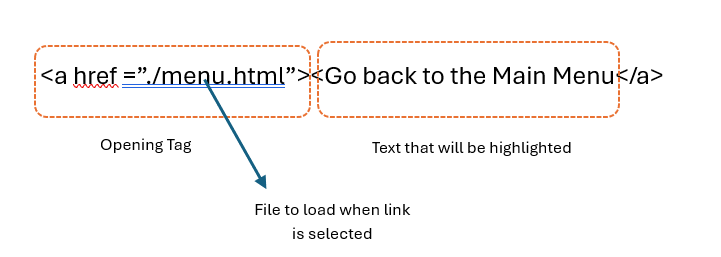
The <a> tag uses attributes to define the link. So rather than the opening <a> tag having just the tag name inside brackets, it looks something like the following.
<a href =”menu.html” title =”The Twelve Caesars”>In the above example the “href” attribute to specify the name or URL to which this link points.
Most of the HTML tags, the link tag also has a closing tag, </a>. All the text between the opening and closing tags will become the actual link on the screen and be highlighted, underlined, or otherwise marked as specified in the page’s style sheet when the web page is displayed. That the text we are our readers will click to follow the link to the URL in the “href” attribute.
Linking Two Pages
Now we can try to create simple example with two HTML pages on our local disk. We need to use text editor or web browser for this exercise. Because both the pages will work in with are on our local disk, we do not need to connect to the internet.
Create two HTML pages and save then in separate files. Here we will provide code for the two HTML files. One page called “menu.html” and another page called “months.html”.
Ex 1: menu.html
<!DOCTYPE html>
<html>
<head>
<title>The Twelve Months in the Year</title>
</head>
<body>
<h1>The 12 Months in the Year</h1>
<p>A comprehensive exploration of the twelve calendar months that make up a standard year, highlighting their unique characteristics, variations across cultures, and how they fit into the Gregorian calendar.</p>
<ul>
<li>January</li>
<li>February</li>
<li>March</li>
<li>April</li>
<li>May</li>
<li>June</li>
<li>July</li>
<li>August</li>
<li>September</li>
<li>October</li>
<li>November</li>
<li>December</li>
</ul>
</body>
</html>
Now save the “menu.html” page and try to create new page name “months.html”
<!DOCTYPE html>
<html>
<head>
<title>The twelve months in the year</title>
</head>
<body>
<h2>Temporal organization</h2>
<p>Months partition the year into manageable units for scheduling, budgeting, and tracking progress.</p>
<h2>Agricultural and seasonal relevance</h2>
<p>In many regions, months signal planting, growing, and harvest cycles, influencing food supply and rural economies.</p>
</body>
</html>
Now we can create a link from the menu file to the months file. Edit “menu.html” file, and put the cursor at the following line:
<li>months</li>Now we will want to nest the <a> tag inside the existing <li>tag. First, put the link tags themselves <the <a> and </a> tags) around the text that we want to use as the link:
<li><a>months</a></li>Now add the URL that we want to link to as the href part of the opening link tag. In this case the URL is simply a pointer to the other file we have created. Enclose the name of the file in quotation marks (straight quotes, not curly or typesetter’s quotes[“]), with an equal sign between href and the name. Filenames in links are case sensitive, so make sure that the filename in the link is identical to the name of the file we created. (months.html is not the same file as months.html; it has to be exactly the same case.) Here I have used “months.html;” if we used different files, use those filenames.
<li><a href="months.html">Months</a></li>Now start your browser, select Open File ( or its equivalent in your browser), and open the menu.html file. The paragraph we used as your link should now show up as a link that is in a different color, underlined, or otherwise highlighted.
Now when we click the link, our browser should load and display the months.html page.
If the browser can’t find the file when we click on the link, make sure that the name of the file in the href part of the link tag is the same as the name of the file on the disk, uppercase and lowercase match, and both files are in the same dictionary. Remember to close our link, using the </a> tag, at the end of the text that serves as the link. Also make sure that we have quotation marks at the beginning and end of the filename and that both quotation marks are ordinary straight quotes. All these things can confuse the browser and prevent if from finding the file or displaying the link properly.
Now we can create a link from the months page back to the menu page. A paragraph at the end of the months.html page is intended for just this purpose
<p>Go back to the main menu</p>Add the link tag with the appropriate href to that line, such as the following in which menu.html is the original menu file
<p><a href="menu.html">Go back to main menu</a></p>Now when we reload the months file, the link will be active, and we can jump between the menu and the detail page by clicking on those links.
Linking Local pages using relative and absolute pathnames
The example in the preceding section shows how to link together pages that are contained in the same folder or directory on our local disk. This section continues that thread, linking pages that are still on the local disk but might be contained in different directories or folders on that disk.
When we specify just the filename of a linked file within quotation marks, as we did earlier, the browser looks for that file in the same directory as the current file. This is true even if both the current file and the file being linked to are on a server somewhere else on the internet; both files are contained in the same directory on that server. It is the simplest form of a relative pathname.
Relative pathnames points to files based on their locations relative to the current file. They can include dictionary names, or they can point to the path we would take to navigate to that file if we started at the current directory or folder. A pathname might, for example, include directions to go up two directory levels and then go down two other directories to get to the file.
Relative Pathnames
| Pathname | Means |
| href=”file.html” | file.html is located in the current dictionary. |
| href =”files/file.html” | file.html is located in the dictionary called files |
| Href=”files/morefiles/file.html” | File.html is located in the morefiles dictionary, which is located in the files dictionary, which is located in the current dictionary. |
| Href=”../file.html” | File.html is located in the directory one level up from the current directory. |
| Href=”../../files/file.html” | File.html is located two directory levels up, in the directory files. |
Absolute pathnames
These absolute pathnames can also specify link to another page on our local system.
Its point to file based on their absolute locations on the file system. Where as relative pathnames point to the page to which we want to link by describing its location relative to the current page.
Absolute pathnames always begin with a slash, this is the way we can differentiate from relative pathnames.
Absolute pathnames examples
| Pathname | Means |
| Href=”/home/index/file.html” | File.html is located in the directory /home/index) |
| Href=”/d|/files/html/file.html” | File.html is located on the D: disk in the directory fiels/html |
| Href=”/Macinthosh%20HD/HTML%20Files/file.html” | File.html is located on the disk Macintosh HD, in the folder HTML Files |
In the above table last example, the series of characters “%20” represents a space.
Links to Other documents of the web
The HTML code we use to link pages on the web looks exactly the same as the code we use for links between local pages. We still use <a> tag with an href attribute, and we include some text to serve as the link on our web page.

Linking our Months page to the web
Add the below code in the months.html page for getting more details about months in the year. It will be a Wikipedia article; it describes more than our current page.
<p>"<em><a href="https://en.wikipedia.org/wiki/Month">The twelve months</a></em>"article has more information on the months. </p>In the above <em> and </em> tags are used to italicized the title.
creating a Link Menu
For this example, we can create multiple HTML pages for providing links to the one-page content.
Now I will provide main and base of the HTML code. This code contains multiple pages links which we created already.
<!DOCTYPE html>
<html>
<head>’,
<title>Really Honest Book Reviews</title>
</head>
<body>
<h1>Honest Book Reviews</h1>
<p>I read a lot of books about many different subjects. Though I’m not a
Book critic, and I don’t do this for a living, I enjoy a really good read
Every now and then. Here’s a list of books that I’ve read recently:</p>
<ul>
<li><a href="rainbow.html"<em>The Rainbow Returns</em> by E. Smith</a>. A fantasy story set in biblical times. Slow at times, but interesting.</li>
<li><a href="wealth.html"<em>Seven steps to Immeasurable Wealth</em> by R. U. Needy</a>. I am still poor, but I’m happy! And that’s the whole point. </li>
<li><a href="food.html"<em>The Food-Lovers Guide to weight Loss</em> by L. Goode</a>. At last! A diet book with recipes that taste good!</li>
<li><a href="silly.html"<em>The silly Person’s Guide to Seriousness</em> by M. Nott</a>. Come on … who wants to be serious?</li>
</ul>
</body>
</html>
Linking to Specific Places Within Documents
We can use links to jump to a specific element within the same page. For example if we can assign IDs to the headings at the beginning of each section and include a table of contents at the top of the page that has links to the sections.
The id attribute can be used with any element on a page. The only requirement is that each ID is unique within that page. For example, here’s a heading with an ID:
<h2 id="contents">Table of Contents</a>Creating Links and Anchors
When we create links using <a>, the link has two parts: the href attribute in the opening <a> tag, and the text between the opening and closing tags that serves as a hot spot for the link.
To create an anchor at the section of a page labelled part4, we might add an ID part4 to the heading, similar to the following:
<h1 id="part4">part four: Grapefruit from Heaven</h1>To point to an anchor in a link, use the same form of link that you would when linking to the whole page, with the filename or URL of the page in the href attribute. After the name of the page, however, include a has sign(#) and the ID of the element exactly as it appears in the id attribute of that element.
<a href="mybigdoc.html#part4”>Go to part 4</a>Exercise: Name: M.html
Linking Sections Between Two Pages
<!DOCTYPE html>
<html>
<head>
<title>Classical Music:</title>
</head>
<body>
<h1>M</h1>
<h2>Madrigals</h2>
<ul>
<li>William Byrd, <em>This Sweet and Merry Month of May</em></li>
<li>William Byrd, <em>Though Amaryllis Dance</em></li>
<li>Orlando Gibbons, <em>The silver Swan</em></li>
<li>Claudio Monteverdi, <em>Lamento d’Arianna</em></li>
</ul>
<p>Secular vocal music in four, five and six parts, usually a capelaa. 15th – 16th Centuries. </p>
<p><em>See also</em>
Byrd, Gibbons, Monteverdi </p>
</body>
</html>
Now we want is to be able to link the word Byrd in m.html directly to the section for Byrd in b.html. Here’s the relevant part of b.html we want to link.
<!DOCTYPE html>
<html>
<head>
<title>Classical Music: B</title>
</head>
<body>
<h1>B</h1>
<h2>Byrd, William, 1543-1623</h2>
<ul>
<li>Madrigals
<ul>
<li><em>This sweet and Merry Month of May</em></li>
<li><em>Though Amaryllis Dance</em></li>
<li><em>Lullabye, My Sweet Little Baby</em></li>
</ul>
</li>
<li>Masses
<ul>
<li><em>Mass for Five Voices</em></li>
<li><em>Mass for Four Voices</em></li>
<li><em>Mass for Three Voices</em></li>
</ul>
</li>
<li>Motets
<ul>
<li><em>Ave verum corpus a 4</em></li>
</ul>
</li>
</ul>
<p><em>See also</em>
Byrd, Gibbons, Lassus, Monteverdi</p>
</body>
</html>
Linking to Elements in the Same Document
If we want to link to sections within the page, we can link them as well. For longer pages, using IDs can be an easy way to jump around within sections. To link to sections, we need to just add IDs to each section the way we usually do.
Go to <a href="#section5">The Fifth Section </a>The rel Attribute
One additional attribute that’s supported by the <a> tag is the rel attribute, which is used to describe the relationship between the linking document and the document that the user is linking to. There’s a set of specific values that should be used with this attribute. The most well-known is the “nofollow” attribute, which indicates that search engines should as a measure to fight search engine spam. We should use it like this:
<a href="http://www.example.com/" rel="nofollow">Link to example site</a>Kinds of URLs
We have many kind of URLs (Unified Resource Locator) are available.
HTTP
It is a most common type of URL because they point to other documents on the web. HTTP is a protocol that world wide web servers use to communicate with web browsers.
Basic URL form
http://www.varshithaeducation.in/Anonymous FTP
FTP URLs are used to point to files located on FTP servers – usually anonymous FTP servers; that is , the ones that allow us to log in using anonymous as the login ID and our email address as the password. FTP URLs also follow the standard URL. Form, as shown in the following examples:
ftp://ftp.foo.com/home/foo
ftp://ftp.foo.com/home/foo/homepage.html
Non-Anonymous FTP
All the FTP URLs in the preceding section are used for anonymous FTP servers. We also can specify as FTP URL, for named accounts on an FTP server, like the following:
ftp://username:password@ftp.foo.com/home/foo/homepage.htmlmailto
mailto URLs are used to send electronic mail. If the browser supports mailto URLs, when a link that contains one is selected, the browser will open a new outgoing email in our default email application and send that message to the address in the link when mailto links might not work at all for them.
The mailto URL is different from the standard URL form. It looks like the following:
mailto:internet_email_addressHere is the example:
mailto:services@varshithaeducation.infile
File URLs are intended to reference files contained on the local disk. In other words, they refer to files located on the same system as the browser. For local files, URLs have an empty hostname
File:///dir1/dir2/file